 Beveiligingsbeleid
(bewerken met de module Klantenverzekering)
 Leveringsbeleid
(bewerken met de module Klantenverzekering)
 Retourbeleid
(bewerken met de module Klantenverzekering)
Few things are more frustrating than a laptop that won't power on or charge. You plug it in, expecting the charging light to illuminate and your battery percentage to climb, but nothing happens. If you own an Acer Aspire 7, specifically models A715-41G or A715-75G, and are facing these power-related woes, the culprit is often the Acer DC power jack. This small but crucial component is the gateway for electricity to reach your laptop's battery and internal components. When it fails, your laptop becomes about as useful as a paperweight.
Understanding the potential issues and solutions for the Acer Aspire 7 A715-41G A715-75G dc jack is the first step towards getting your valuable machine back in working order.
The DC jack is subject to daily wear and tear. Simply plugging in and unplugging the power adapter puts stress on the connector. Over time, or with accidental tugs and pulls on the cable, this stress can lead to various types of failures, resulting in an Acer Aspire 7 A715-41G A715-75G dc jack defect.
Common signs of a faulty DC jack include:
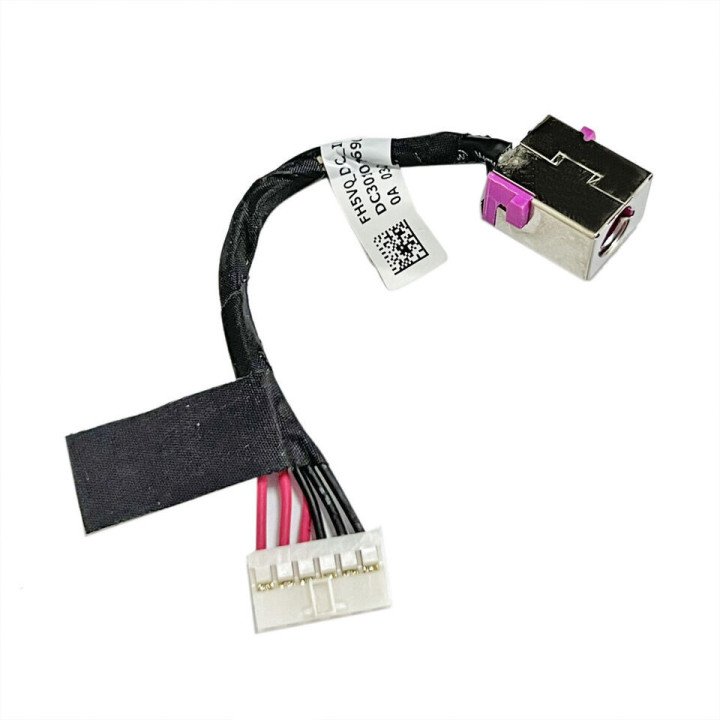
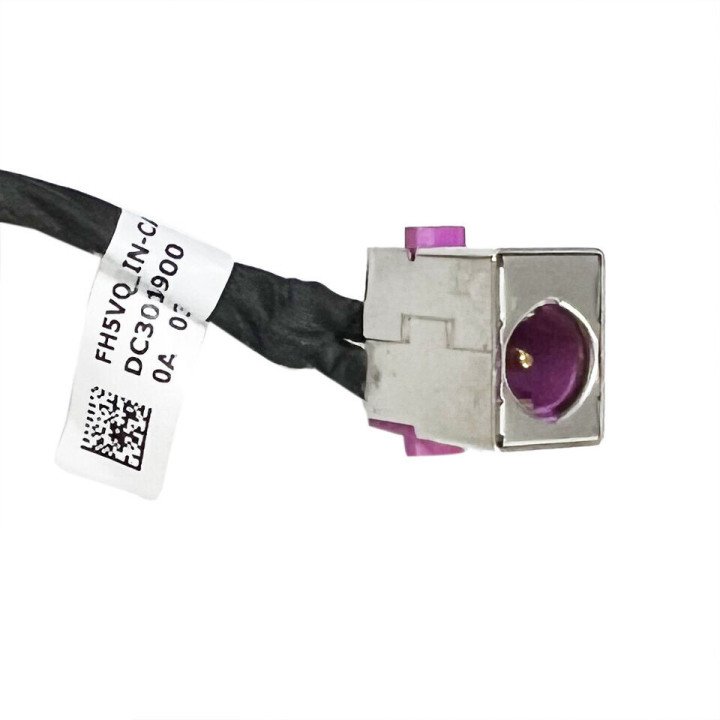
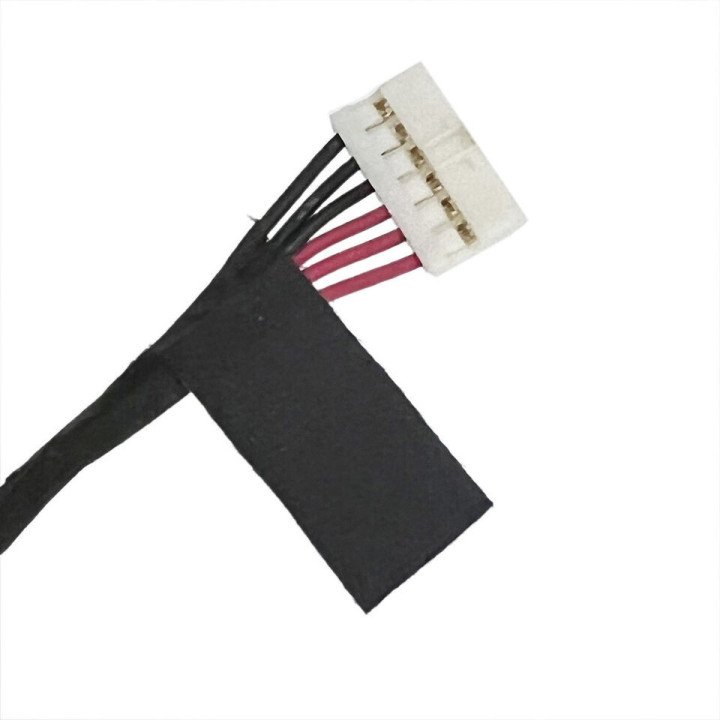
The defect itself can manifest in several ways: a broken central pin, a fractured solder joint (if the jack is soldered directly to the motherboard, though often on these models it's a cabled connection), or damage to the internal wiring connected to the jack. In the case of the Acer Aspire 7 A715-41G and A715-75G, the DC jack is commonly a separate component connected to the motherboard via a cable. This design makes replacement somewhat easier than a soldered jack, but the defect can still be in the jack itself or its attached cable.
Before assuming the DC jack is the problem, it's wise to rule out other possibilities like a faulty power adapter or a completely dead battery. However, given the symptoms described, the Acer Aspire 7 A715-41G A715-75G dc jack defect is a highly probable cause.
Once you've identified the DC jack as the likely source of your power problems, the next step is finding the correct replacement part. Using the precise part number is crucial to ensure compatibility with your specific Acer Aspire 7 A715-41G or A715-75G model.
For these models, the typical replacement part is the Acer Aspire 7 A715-41G A715-75G dc jack with cable. Look for the following part numbers when searching for a replacement:
These numbers identify the specific DC power jack assembly designed for your laptop series. The fact that it comes as a single unit including the cable is important, as the problem could be within the jack itself or a break in the cable connecting it to the motherboard. Replacing the entire assembly ensures you address both possibilities with a single component.
Purchasing the correct part using these numbers from a reputable supplier is essential for ensuring a successful replacement and restoring your laptop's charging functionality.
Replacing the Acer Aspire 7 A715-41G A715-75G dc jack with cable is a moderate-difficulty repair. It requires opening the laptop's chassis, which involves removing several screws (often hidden under rubber feet or covers), carefully separating plastic clips, and potentially disconnecting other components like the battery, keyboard ribbon cables, or cooling assembly to gain access to the DC jack connector on the motherboard.
Here's a simplified overview of the process:
While a cabled DC jack is easier to replace than a soldered one (which would require soldering skills), opening a laptop requires patience, attention to detail, and some technical aptitude. If you are uncomfortable with disassembling electronics, it is highly recommended to seek professional assistance for the Acer dc jack replacement. A qualified technician can perform the repair safely and effectively, often having the correct dc jack part number readily available or knowing where to source it.
In conclusion, a non-charging or dead Acer Aspire 7 A715-41G or A715-75G is a common problem, frequently traceable to an Acer Aspire 7 A715-41G A715-75G dc jack defect. By confirming the symptoms, sourcing the correct Acer Aspire 7 A715-41G A715-75G dc jack with cable using part numbers like DC301016900 or 50.Q89N2.002, and performing or arranging for the Acer dc jack replacement, you can often bring your laptop back to full functionality and avoid the cost of a complete system replacement.

check_circle
check_circle


Comments (0)
Your review appreciation cannot be sent
Report comment
Report sent
Your report cannot be sent